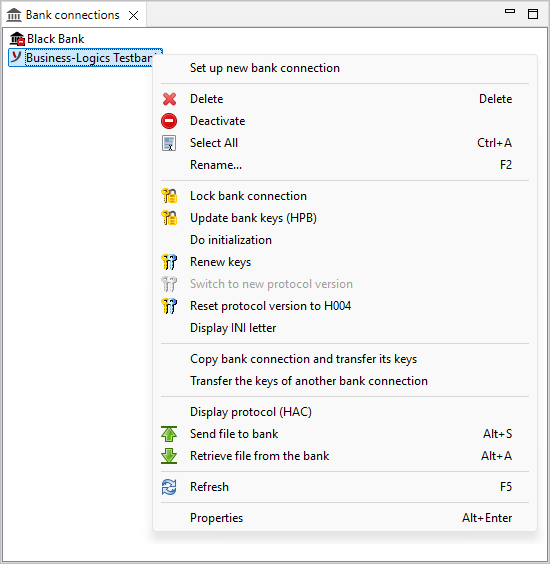
Figure: Overview of the bank connections with context menu and a deactivated connection
The overview Bank connections shows all banks set up for you. The first bank was already set up during the First initialization. Further banks can be set up here subsequently. For this purpose see section Set up bank connection. In addition to the name, the overview also shows the bank icon assigned during configuration. It is advisable to assign a unique icon to each bank connection, as this icon represents the bank connection in many parts of the application.
Via the context menu there are further functions available. To do so, right click the desired bank with the mouse.
By selecting the menu item Properties the dialog box opens, which is described in the Bank properties section. This you can also reach with a double-click, via the Edit menu or the key combination Alt+Enter.
States of the connection that require your attention are indicated by an additional icon next to the bank icon, e.g., a yellow warning triangle for not initialized, a red cross for locked, a red line for deactivated. Information on these states can be found in the corresponding sections.
The context menu also includes functions for file transfer, Send file to the bank and Fetch file from the bank. Alternatively, you can access these from the main toolbar.
Figure: Overview of the bank connections with context menu and a deactivated connection