User profile

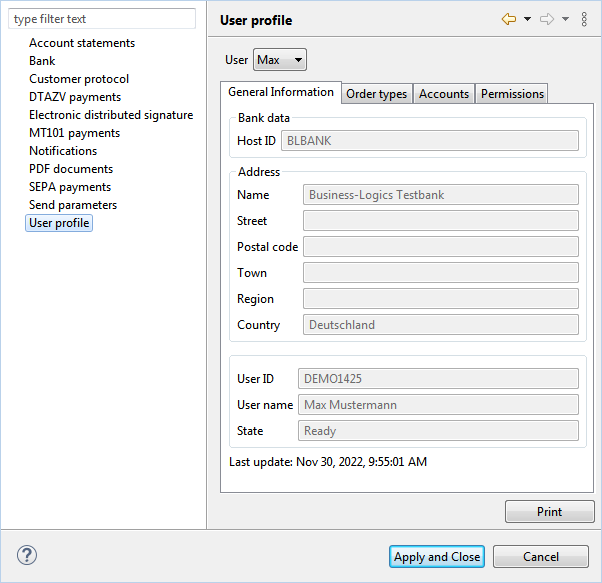
This window displays the information that the bank has stored for you. If you are not initialized with the bank, you will not receive a user profile and this area will remain empty. Under General Information, you will find core data of the bank (host ID and address), as well as your subscriber data at the bank (subscriber ID and name). The status Ready indicates an initialized connection and below the timestamp below displays the last update. The settings made for you at the bank are displayed in the tabs Order types, Accounts and Permissions.

Note: In the bank server, the banks that you see in BL Banking are also called Customers, and the users for these customers are called Subscribers. Your user in BL Banking corresponds to a subscriber at the bank, but is not identical to it. The user profile contains the bank-specific rights of the customer and subscriber. These cannot be configured in BL Banking, but only on the bank server.

The banks provide the user profile with the order type HTD for retrieval. Under General in the preferences, you can select automatic updates of the user profiles every time the BL Banking application is started. Alternatively, you can select a bank in the bank connection overview and select Refresh from the context menu or press the key F5. Updating is always necessary after the bank has made changes. You can request changes, e.g. if you are missing order types, accounts or permissions.

As a user with administrator rights, you can view the user profiles of other users by selecting one from the drop-down list at the top of the window. The Print button at the bottom right opens the profile of the selected user as a PDF file and saves it in the workspace directory. The printout contains a summary of the data from all tabs without the bank address, without the list of order types and without technical order types. In order for the data to be up to date, the user must have previously updated his user profile.

Note: You can download your own HTD files in XML format for analysis or support purposes. To do this, select the action Retrieve file from the bank from the menu and select the bank and the order type HTD in the following dialog box. The downloaded file can be opened in the perspective Orders on the tab Retrieved files or saved locally.