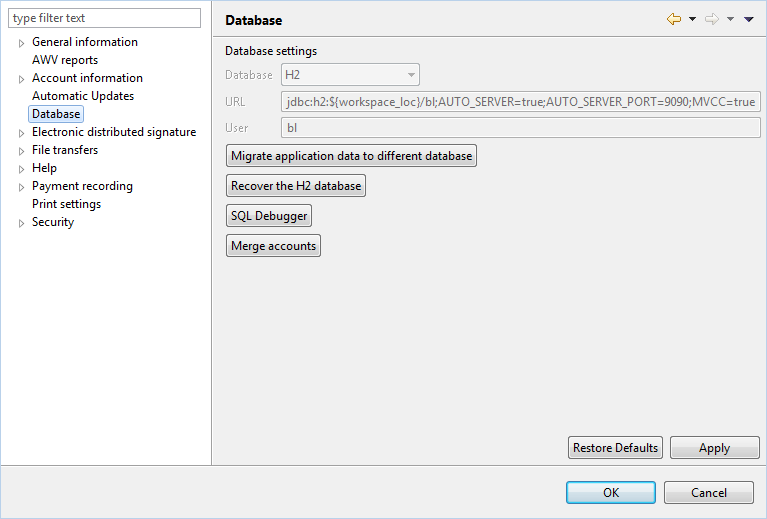
Figure: Preferences - Database
This windows displays the currently used database settings. If these were not changed during the installation or update respectively, the settings of the H2 database provided by default are displayed.
You can migrate the application data to another database at any time. However, this must have been separately installed previously. By clicking the button Migrate application data to another database a dialog box is opened, where you can enter the settings of the new database.
In rare cases in can happen that the bundled H2 database is damaged. Then a recovery can be tried by clicking the button Recover the H2 database. Before that the program backs up the existing database file as backup_DATE_TIME_bl.h2.db in the workspace directory.
Upon clicking this button a window of the same name opens, which allows to enter SQL commands to the database. This function is intended for the purpose of error analysis and should only be applied after consultation with the support of BL Banking.
In rare cases, it may happen that identical accounts are displayed twice. You can then use this button to merge the accounts.
Figure: Preferences - Database